Directional Shading
LED panels can have varying brightness and color depending on the viewing angle. When viewed in a flat angle brightness usually is reduced and colors can shift. This is especially visible when multiple panels cover a large area or notable angles between neighboring panels are used (e.g. cave setup).
Directional shading can dynamically adjust the colors depending on the viewing angle and make the color uniform across the entire screen. This works in conjunction with dynamic warping, where geometry is adjusted based on the current viewer position.
Settings
An editor allows to adjust the directional shading profile with live preview on screen.
Colors are adjusted in a circular grid pattern, where each grid point represents a certain viewing angle. Center point represents direct(orthogonal) viewing angle, outer points represent flat viewing angles. Rightmost point represents viewing from the right side, topmost point from above, and so on.
So when editing the bottom points in the grid, this usually influences top areas of a vertical screen, which are seen from below from an standard eyepoint at half screen height.
The preview on screen shows an overlay highlighting the areas influenced by the currently selected grid points in the editor.
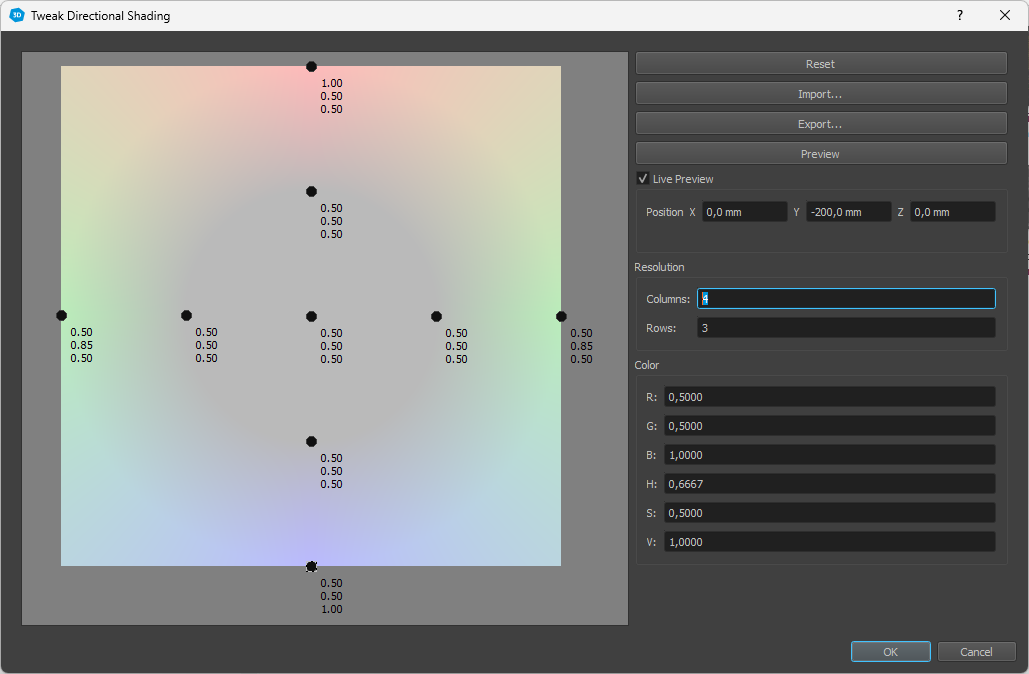
Editor with directional shading grid on the left and settings on the right.

Directional shading preview on screen including overlay, highlighting the areas influenced by currently selected grid points in editor.
- Result
Reset all colors to white
- Import / Export
Import or export the current directional shading profile. Since this is usually dependent on panel type, it can be reused for multiple projects using the same panel type.
- Preview
Manually trigger preview update.
- Live Preview
Enable or disable live preview updates while editing the profile.
- Position
Current viewer position relative to calibration coordinate system. This viewer position is used for generating the preview on screen.
- Resolution (Columns, Rows)
Resolution of the circular profile grid. 4 columns used for typical profile. 1 column can be used for isotropic profiles (same color drift to left, right, top and bottom).
- Color
Color for currently selected grid points.
- RGB (Red, Green, Blue)
Tune primary colors directly.
- HSV (Hue, Saturation, Value)
Tune colors in HSV color space.
Calibration Strategy
Start with a low resolution grid
Init all to gray to have room for boosting colors towards flat angles, where the displays usually get dim and tinted.
Make sure your viewing position is the same as the position given for the live preview.
Use different viewing positions to cover all angles.
If existing, concentrate on edges where panels meet at different angles (cave setup), and try to match these panels at the edge for different viewing angles.